Unable to unlock/lock my door remotely

This feature needs a gateway
Remote features only work when your lock is paired to a gateway.
If you already have a Wi-Fi gateway make sure your have configured the Wi-Fi Bridge and enabled Remote Unlocking for your Smart Door Lock.
If you have a Smart Lock with built-in Wi-Fi such a the SDL-PP2, SDL-SA1 and SDL-AX1 (Camera), refer to the product user manual to connect the lock to the Wi-Fi and to enable remote unlock.
If you have a Smart Lock with built-in Wi-Fi such a the SDL-PP2, SDL-SA1 and SDL-AX1 (Camera), refer to the product user manual to connect the lock to the Wi-Fi and to enable remote unlock.
Is the Wi-Fi Gateway configured properly?
- To be able to lock/unlock your door remotely (outside bluetooth range), you need to have a Wi-Fi Gateway configured.
- To confirm you have a Wi-Fi Gateway configured correctly, go to your TTLock App, and in the home page you will see your Wi-Fi Gateway listed. Depending on the user interface you have selected, you're home screen may look either of the following.
- If you don't see your Wi-Fi Gateway listed, please follow the instructions in this to configure it.
- To lock or unlock your door remotely, outside Bluetooth range, you must have a Wi-Fi Gateway set up and working correctly.
- To check this, open the TTLock app. On the home screen, you should see your Wi-Fi Gateway listed. The layout will vary depending on which user interface you are using.
- If you do not see a Wi-Fi Gateway listed, follow the instructions in this article to configure one.
- If you are unsure what a Wi-Fi Gateway is, refer to this article for more details.
Business Style user interface- Tap the Gateway tab.- If the gateway appears in the list, it has been configured.- A green Wi-Fi icon means the gateway is online. A grey icon means it is offline.Home Style user interface- The gateway can be identified by the router icon. See below screenshot.- If the gateway appears in the list, it has been configured.- A green Wi-Fi icon means the gateway is online. A grey icon means it is offline.
Is the lock you're trying to unlock remotely connected to the Wi-Fi Gateway?
- In the TTLock app, tap on your gateway
- Select "Nearby devices"
- Your smart lock should appear in the list.
If the lock does not appear, it may be too far from the gateway, or there may be walls or other obstructions between them. Refer to this article for guidance.
If the lock does not appear, it may be too far from the gateway, or there may be walls or other obstructions between them. Refer to this article for guidance.
Is Remote Unlock turned on in your TTLock app?
- Tap on your smart lock on the TTLock app
- If you see a small padlock icon with a Wi-Fi symbol next to the main lock icon, Remote Unlock is enabled.
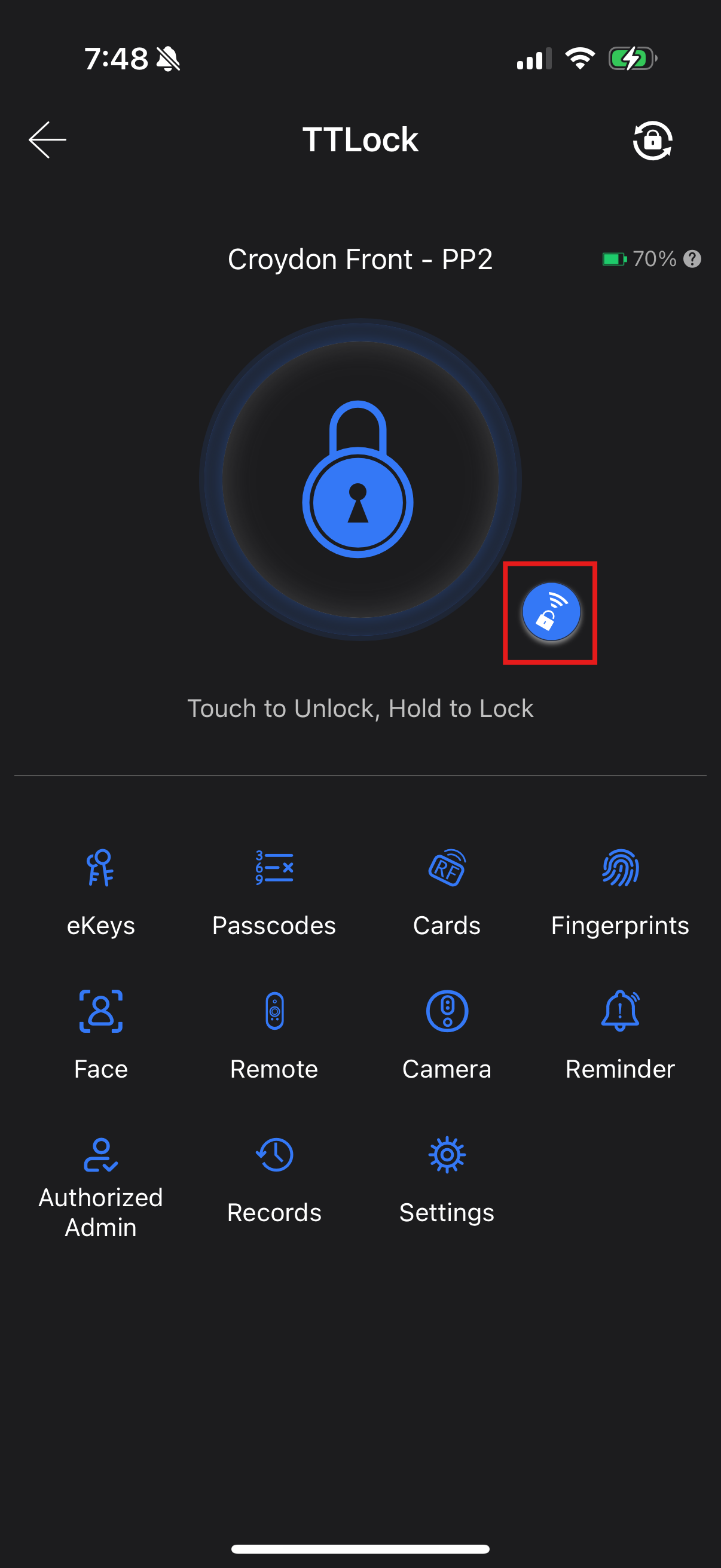
- If this icon is missing, follow the instruction on this article to turn on remote unlock.
- If you see a small padlock icon with a Wi-Fi symbol next to the main lock icon, Remote Unlock is enabled.
- If this icon is missing, follow the instruction on this article to turn on remote unlock.

If the steps above do not solve the problem, please send us the following
- A screenshot of the TTLock home screen showing the gateway is configured
- A screenshot of your smart lock home screen showing the padlock button
- A screenshot of your smart lock settings showing Remote Unlock is turned on
- A screenshot of the nearby devices screen
- A screenshot of your smart lock settings showing Remote Unlock is turned on
- A screenshot of the nearby devices screen